On this page
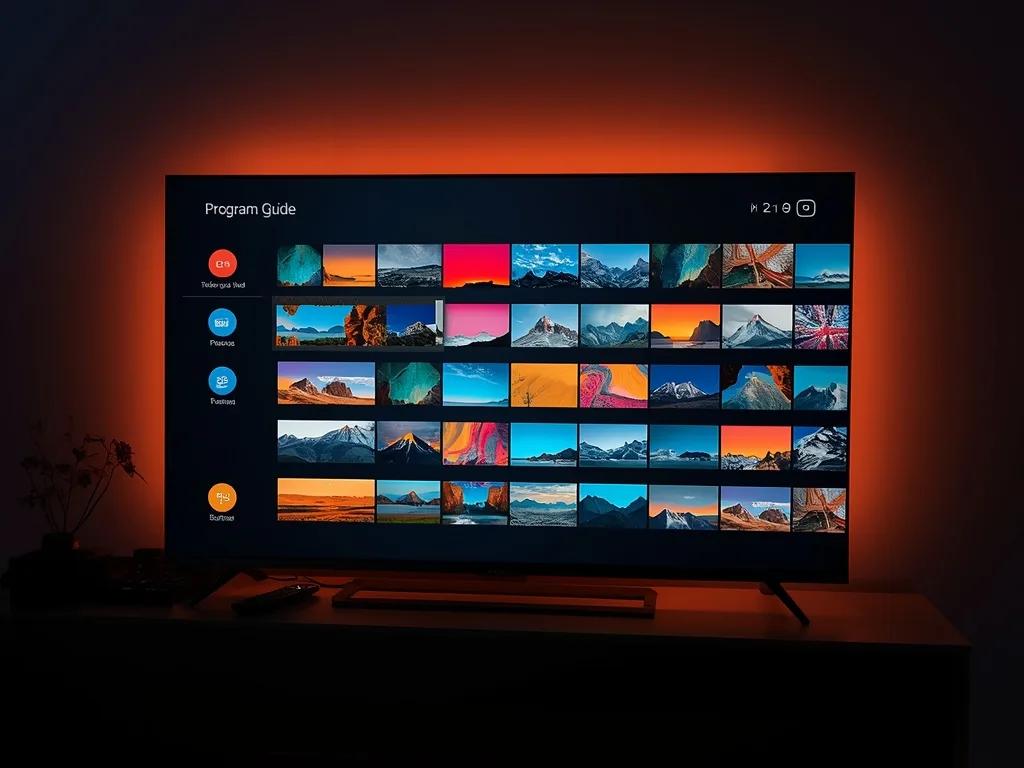
The electronic programme guide, or EPG, is the grid that shows what is on now and next. When it fails, channels still play but the guide is blank, shows the wrong programmes, or sits hours out of sync. The good news is that guide problems are rarely a sign the whole service is down, and most are fixed in a few minutes.
What an EPG Actually Is
An EPG is separate from the video stream. The channel list tells your player where to find each stream, while the guide is a data file, usually in an XMLTV-style format, describing programme titles and times. The player must download that file and match each entry to a channel using an identifier. If any step breaks, you get a blank or wrong guide even though video works.
That is why guide problems feel strange: the picture plays perfectly, but the grid is empty. If you want the fundamentals first, our guides to what IPTV is and how IPTV works explain the pieces.
Common Causes of Guide Problems
- Wrong device date, time or time zone, which shifts or hides every programme
- The guide has not downloaded yet, or the download was interrupted
- No guide source configured, which is common with plain M3U playlists
- Channels not matched to guide identifiers, so only some rows fill in
- A very large guide file overwhelming a low-powered device
- A temporary problem on the guide provider's side
- An outdated player app with a known bug
Step-by-Step Fixes
1. Check the clock and time zone
Set the device to automatic date and time if available. A guide that is exactly one or several hours off almost always points to a time zone mismatch, either on the device or in the player's own time offset setting.
2. Refresh the guide inside the player
Most players have a refresh or update guide option in settings. Run it once and wait a few minutes rather than tapping repeatedly. Large guides take time, especially on older devices.
3. Confirm the guide source
With Xtream-style logins the guide is usually supplied by the same account. With an M3U link you may need to enter a separate guide address. If you are unsure, check your welcome message or ask via the contact page. Our TiviMate setup guide shows where the guide source setting sits in one popular player.
4. Check the channel matching
If some channels have data and others do not, the unmatched ones may lack an identifier link. Some players let you map a channel to a guide entry manually, which fixes the odd channel without touching the rest.
5. Clear the cache and restart
Clear the app cache, restart the app and then restart the device. Stale cached guide data is a surprisingly frequent culprit after an app update.
Matching Symptoms to Fixes
| What you see | Likely cause | Fix |
|---|---|---|
| Guide completely empty | No guide source or failed download | Add or refresh the source; check connection |
| Guide hours off | Time zone mismatch | Correct device time zone and player offset |
| Some channels blank | Missing identifier match | Map those channels or refresh the playlist |
| Guide stops at today | Short guide window or outdated file | Refresh; ask your provider about guide length |
| Guide loads but app is slow | Large file on weak device | Reduce guide days if possible; restart; consider better hardware |
Swipe to see more →
Does a Missing Guide Mean the Service Is Down?
Usually not. If channels play, the service itself is reachable. The guide is a separate download, so it can fail even when streaming is healthy. The reverse is also true: a perfectly populated guide does not guarantee that a particular live stream will work.
If both the guide and the streams fail, test your connection with another app, then follow our guide to improving IPTV streaming performance to check the network. Device-specific advice is in our setup guides for Firestick and Android TV and Google TV.
When Wi-Fi Is the Hidden Problem
A guide file can be several megabytes. On a weak Wi-Fi connection the download may time out, leaving a partial guide. If the guide only fails on one device, try Ethernet or move closer to the router for the first sync. Once loaded, later updates are usually smaller and more reliable.
Understanding Guide Windows and Catch-Up Data
Not every guide covers the same span of time. Some guide files list a day or two of programmes, others a week. If your guide stops at midnight, the source may simply provide a short window, and refreshing will not extend it. Ask your provider how far ahead the guide runs.
The same applies to programme descriptions. Titles and times are common, while rich descriptions, artwork and episode details depend entirely on what the guide source contains. A sparse guide is not necessarily broken; it may just be a minimal one.
Reducing load on weaker devices
- Limit the number of guide days the player downloads, if it has the option.
- Remove unused categories so the player has fewer entries to match.
- Avoid running the first guide sync while other apps update in the background.
- Restart the device after the first full sync to clear memory.
Why Updates Sometimes Break the Guide
After an app update, cached guide data can become incompatible with the new version, leaving a blank grid until you refresh. If the guide broke right after an update, clear the cache and run a fresh sync before trying anything more drastic.
Prevention Tips
- Keep the player updated, but avoid updating just before a big match.
- Leave the guide to finish loading after first install before you judge it.
- Set the device to automatic time and time zone.
- Keep a note of your guide link, if you have one, in case you need to re-enter it.
- Trim channel lists to the groups you use, which keeps the guide lighter.
If you have tried everything above and still see problems on one specific channel, send the channel name, device and time to LexonStream support through the contact page. With that detail, the cause can usually be pinned down quickly.